
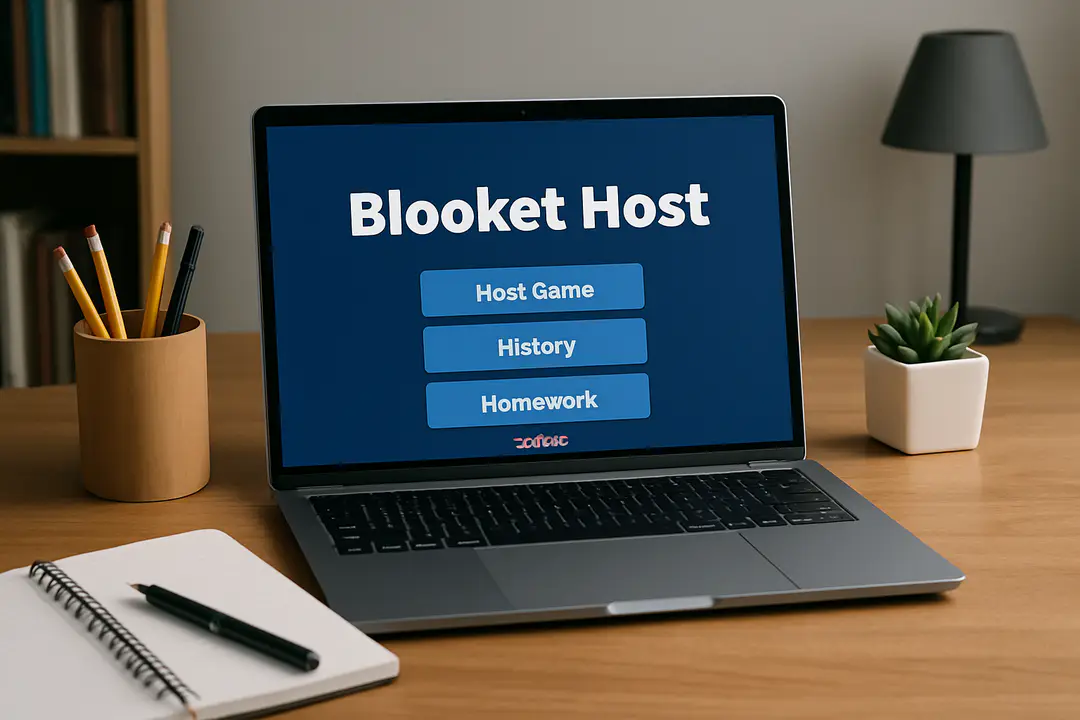

Interactive learning tools can turn a quiet classroom into an active, buzzing hub. Blooket Host is one of those standout platforms that combines quizzes and game mechanics for a memorable lesson. However, many teachers focus on question sets and forget to explore the customization settings that shape the game experience. Could skipping those fine-tuning options mean losing student interest before the game even starts?
Digging into customization and setup can make all the difference. By understanding these underused controls, you can tailor each session to your group’s unique needs. This helps avoid confusion, ensures smooth play, and keeps students excited to join. Let’s dive in and see how mastering these features boosts engagement.
Setup Your Blooket
Getting started with Blooket Host is straightforward, but you should plan each step to avoid last-minute issues. First, create a free teacher account and verify your email address. Then, open the dashboard and click “Host” to start a new session. Select a question set from your library or pick one from the public collection. Adjust basic settings like time per question and points value before launching. If you use other platforms to manage assignments, tools like Homeworkify can help you sync quizzes and homework across apps without extra work.
For classroom management, sharing the game code is a critical step. Display it clearly on the board or project it through your learning management system. Double-check that devices have a stable internet connection. Consider running a quick test round with a volunteer student to confirm everything loads properly. A little prep here saves valuable class minutes and cuts down on confusion.
Game Mode Options
Blooket Host offers a variety of game modes, each designed to spark different kinds of competition and fun. Knowing which mode fits your lesson topic and student group can turn a good quiz into a great one. Below are some of the most popular modes:
- Classic Quiz: Timed questions, individual play, and fast-paced scoring.
- Gold Quest: Collect gold, answer questions to move on, and compete for the jackpot.
- Tower of Doom: Build a tower by answering correctly and watch it grow.
- Battle Royale: Students face off head to head until one remains.
- Racing: Players race across a track by earning correct answers in a set time.
When choosing a mode, think about your group size and attention span. Racing and Battle Royale work well for small classes, while Classic or Gold Quest suit larger groups. If you have a mix of skill levels, modes with gradual elimination keep more students active longer. Always preview the mode in a solo session before going live to familiarize yourself with the flow.
Customize Game Design
Personalizing the look and feel of your Blooket session helps capture student interest right from the start. In your host menu, click “Settings” and explore the design options. You can brand the session with custom images, change background themes, and adjust sound effects. These tweaks make the quiz feel like a unique experience rather than a standard survey.
Follow these steps to customize your game:
- Choose a background theme that matches your lesson topic.
- Upload a class logo or relevant image for the lobby.
- Select music or sound cues to signal question start and end.
- Adjust question timer colors for visual emphasis.
- Save settings as a preset for future classes.
Using a consistent visual style can help students quickly recognize your sessions. Sharing a quick overview of the design choices at the beginning can also build excitement. When students see familiar graphics or colors, it feels more like a branded event and less like another routine quiz.
Engage Your Players
Keeping students focused during a quiz goes beyond question quality. Blooket Host includes interactive features like team play, power-ups, and live leaderboards. Plan moments to pause, discuss answers, and celebrate top performers. This interaction prevents a passive experience and creates a lively atmosphere.
Consider pairing Blooket with other classroom tools to deepen engagement. For instance, integrating data with Classroom 30x can help you track performance trends over time. You might also try platforms like JoinMyQuizz to see different leaderboard displays and find inspiration for new challenges. Rotate game modes and mix up team assignments so students stay curious about what comes next.
Troubleshooting Tips
Even with planning, tech hiccups can happen. Having quick fixes at hand keeps the game moving. Review these common issues and solutions before your first live session:
- Slow loading screens: Clear the browser cache and ask students to refresh.
- Missing responses: Ensure students join with the correct game code.
- Audio glitches: Test sound controls in your system settings and browser.
- Question errors: Edit your question set in advance to fix typos or formatting.
- Network drops: Keep a backup quiz ready offline or switch to a lower-bandwidth mode.
Assign a helper student or co-host to monitor the chat for connection reports. That way, you can address problems without pausing the entire class. Logging out and back in often resolves permission errors quickly. Keep these steps written on your desk or a digital note so you can handle issues calmly.
Putting it all together, hosting a Blooket game lets you combine fun and learning seamlessly. By planning your setup, choosing the right mode, and customizing visuals, you create a smooth experience for your students. Engaging features like power-ups and leaderboards add excitement, while clear troubleshooting steps keep things on track.
Regularly review quiz analytics to spot patterns. Celebrate improvements and offer extra practice for topics students find tough. Encourage feedback on game modes and design so you can refine every session. Over time, these data-driven tweaks will raise participation and deepen understanding.
Remember, the best Blooket Host session balances preparation with flexibility. Embrace new ideas, test different approaches, and involve students in co-creating quizzes. With these strategies in place, each game becomes a dynamic lesson that inspires confidence and curiosity. Get ready to make your next class both educational and memorable.


